Get to know Breeze
Short guides to the features that are easy to miss — most of them are one swipe or tap away.
The sky is the forecast
The scene behind your temperature isn't a wallpaper. It's drawn live from the weather where you are: the sun and moon sit where they really are, the clouds match the cloud type overhead, and rain, storms, snow, fog and mist move through each city's skyline.
- Swipe sideways to move between your saved cities. Tap the city name to add or manage them.
- Pull down to refresh.
- Below the sky, pick how you move through the day — there are three ways, shown next.
Forecast through time
The strip under the hero is how you travel through the forecast. There are three ways to do it — tap the small pill beside the play button to switch between them, and Breeze remembers your choice.
Event Horizon
One line through the days ahead, with dots for the moments that matter. Drag right to travel; let go and it snaps back to now.
Hourly
The classic row of hours, with sunrise and sunset marked. Swipe it to look ahead.
Timeline
Your days on a line. Swipe them past now to jump to another day; tap the center to come back.
The calendar button beside the pill shows the forecast for the events on your calendar.
Time travel & Play My Day
Wherever you travel to, the whole app comes with you: the sky, the temperature, the hero stats and the cards below all show that moment.
- Drag right along the Event Horizon to scrub ahead.
- Let go and it snaps back to now — or stop on a dot to stay on that moment, like the first raindrop or sunset. Tap to return to now.
- Press play (▶) for Play My Day: Breeze sweeps from now to midnight so you can watch the day's weather unfold.
Scan your sky
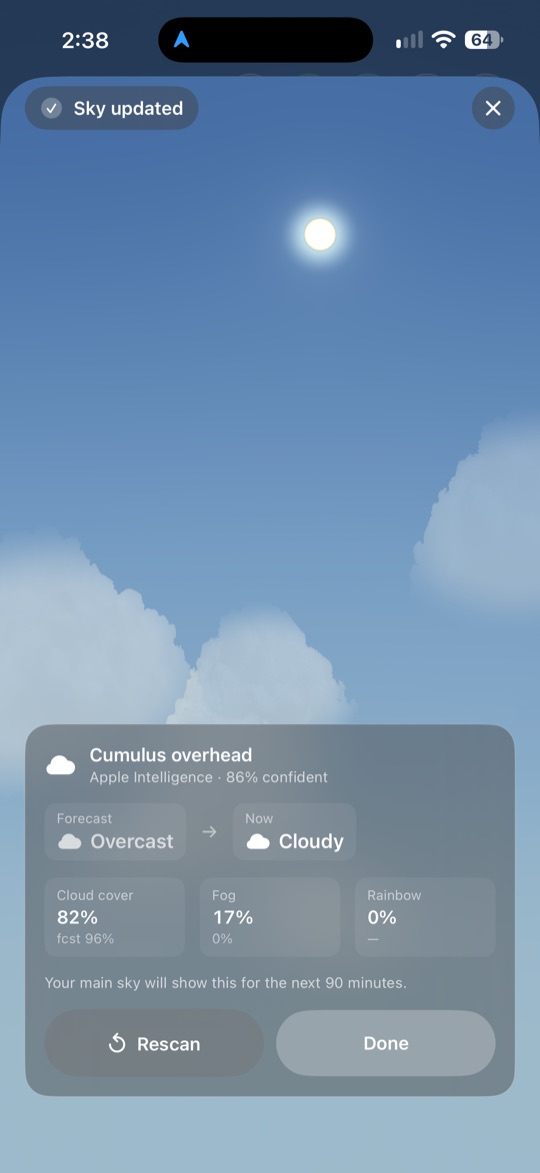
Forecasts are a best guess; your sky is the real thing. Sky Scan uses your camera to see what's actually overhead and redraws Breeze's sky to match.
- Tap the viewfinder button at the top of the weather screen.
- Point your phone up at the open sky and hold steady while Breeze reads it.
- Breeze identifies the cloud type and cover, all on your device, then updates the scene. The result stays in your sky for up to 90 minutes.
The small Sky badge shows where the clouds come from: Forecast, your own Live or Photo scan, or Community scans from people nearby. Tap it to see the details or scan again.
Scans are shared anonymously with nearby Breeze users to improve their skies too. You can turn this off in Settings.
Zen mode
Sometimes you just want the temperature and the sky. Tap the leaf at the top of the screen to hide everything else — the cards, banners and buttons fade away, leaving the temperature, today's high and low, and the day scrubber.
- Tap the brush beside the leaf to choose a style: Classic, Info Pane, Mini Card, Temp Only or Timeline.
- You can still drag through the day in Zen mode.
- Tap the leaf again to bring everything back. Breeze remembers which view you left it in.
Make the cards yours
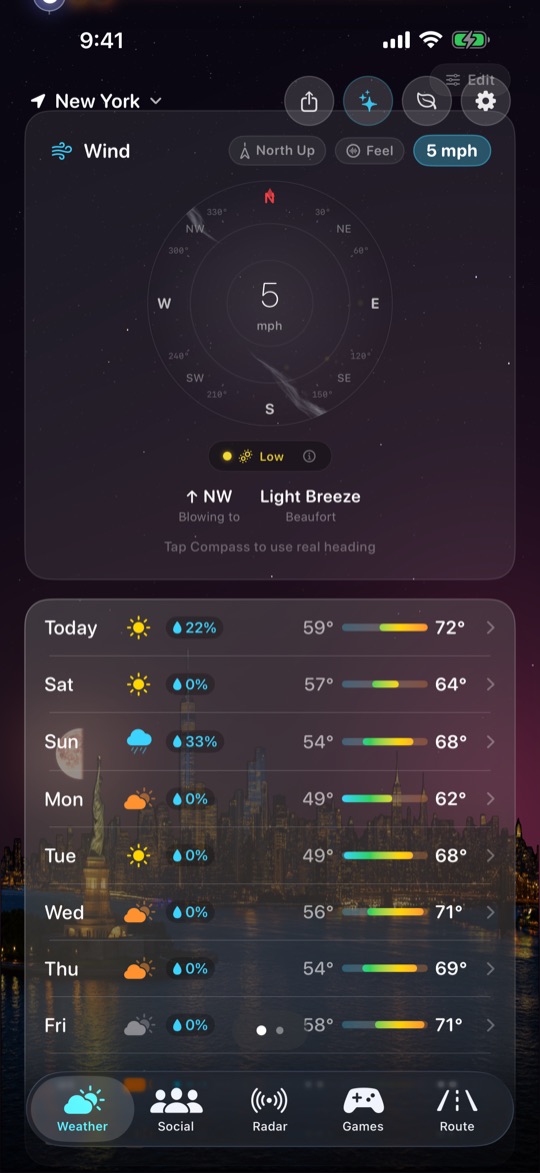
Below the forecast sits a stack of cards — wind, the week ahead and more. Keep the ones you check and drop the rest.
- Scroll down and tap Edit above the cards.
- Add cards like UV index, air quality, humidity, pressure, visibility, moon phase, nearby stations or minute-by-minute precipitation.
- Remove any you don't need — including wind and the week forecast — and drag to reorder.
Tap any card to open it full size with more detail.
Daily games
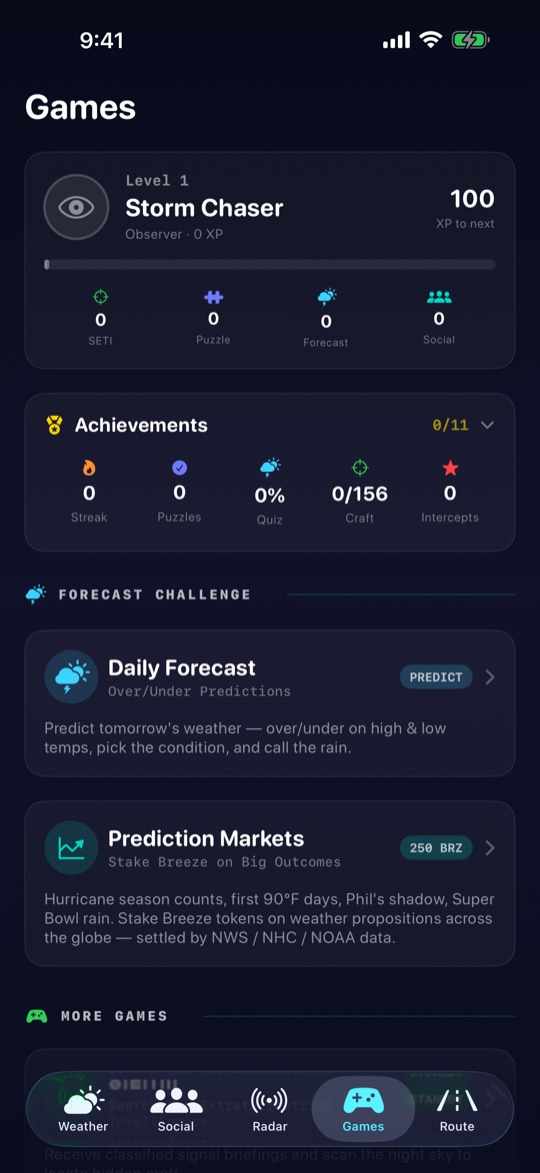
The Games tab turns the forecast into something to play. New challenges arrive every day.
- Daily Forecast — predict tomorrow's weather, from high and low temps to rain, and see how close you got.
- Daily rebus — a weather word puzzle to solve.
- Prediction markets — call big weather events like the first snow or the season's hurricane count.
Playing earns tokens, levels and achievements. See more on the Games page.
Live radar
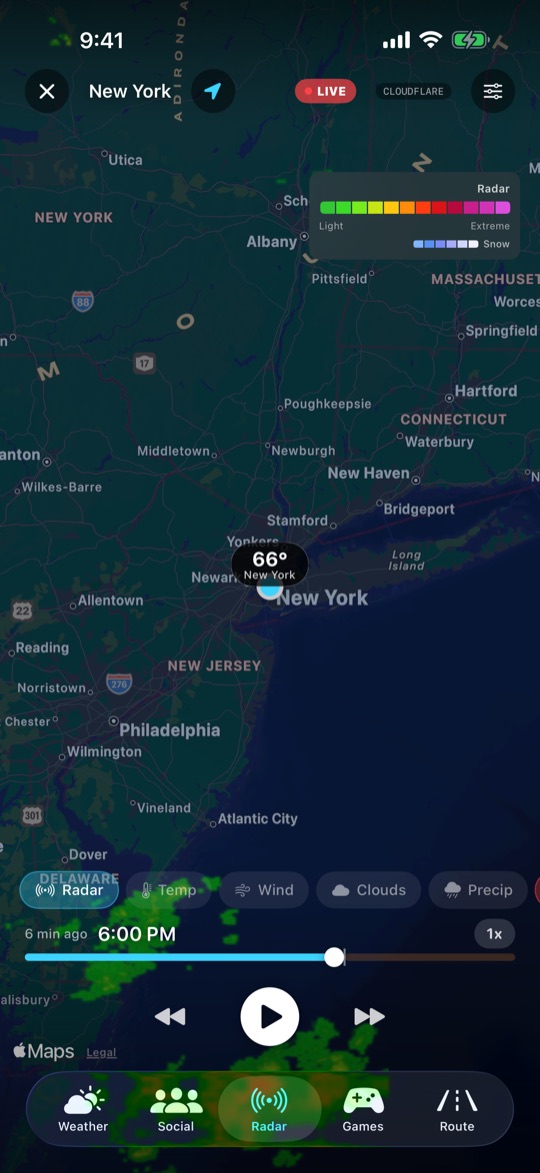
Watch rain and storms move across the map in real time, with smooth motion between frames. Pinch to zoom, drag to look around, and press play to see where the rain has been and where it's heading next. More on the Radar page.
Weather along your drive
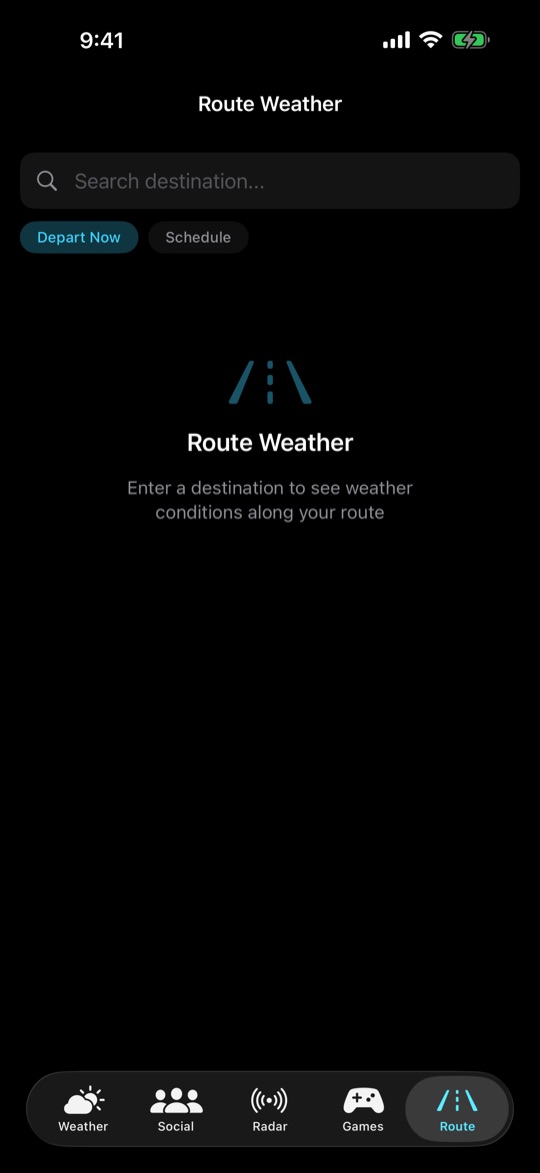
Enter a destination and Breeze shows the weather you'll meet along the way, timed to when you'll actually be there. More on the Route page.
Stargazing
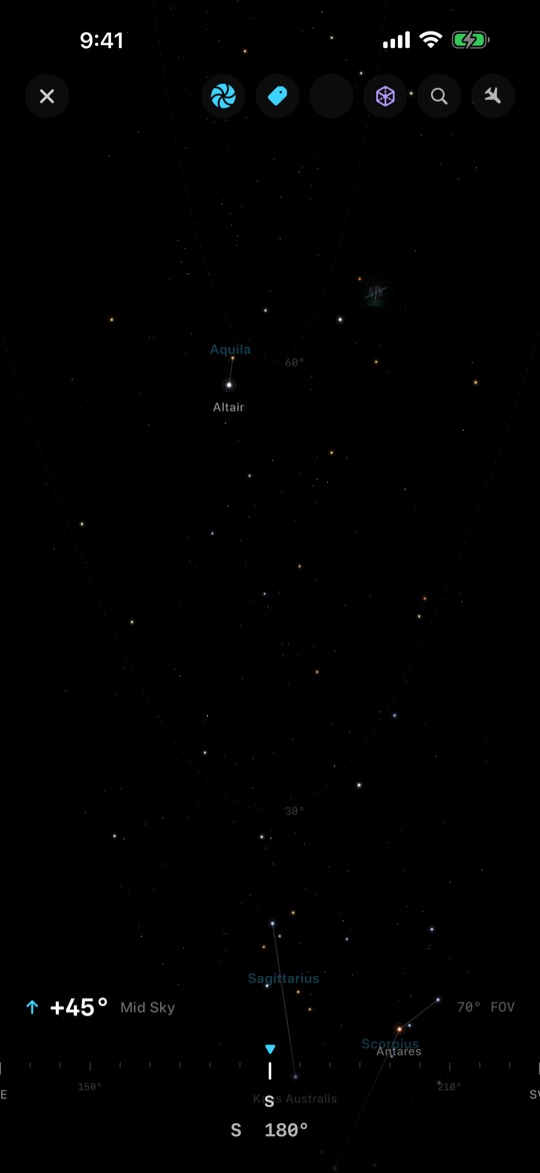
Tap the sparkles button at the top of the weather screen to step into the night sky above you, with stars, planets and the moon where they really are.
Tips, What's New & help
- Breeze shows a short tip the first time you're near a feature. Missed one? Go to Settings → Show Tips Again.
- After an update, What's New highlights what changed. Reopen it any time from Settings.
- These guides are always in Settings → Feature Guides.